Plugin Bootstrap: Constants, Includes, and Asset Enqueue
Before registering any post types, the main plugin file needs to define constants and load all includes. This is the entry point WordPress calls when the plugin is activated, and every other file depends on the constants defined here.
<?php
/**
 * Plugin Name: Map 2.0
 * Description: Interactive map with polygons and locations.
 * Version: 2.0
 * Author: Your Name
 */

if ( ! defined( 'ABSPATH' ) ) exit;

define( 'MAP10_VERSION', '2.0' );
define( 'MAP10_DIR', plugin_dir_path( __FILE__ ) );
define( 'MAP10_URL', plugin_dir_url( __FILE__ ) );
MAP10_DIR gives you the absolute filesystem path to the plugin folder, ending with a slash. MAP10_URL gives you the public URL to the plugin folder. Both are used throughout the plugin — MAP10_DIR for require_once calls and MAP10_URL for enqueuing CSS, JS, and image assets.
After defining constants, load all includes in the correct order. Post types first, then taxonomy (which references the post type slug), then shortcodes (which query both):
require_once MAP10_DIR . 'includes/cpt-maps.php';
require_once MAP10_DIR . 'includes/cpt-locations.php';
require_once MAP10_DIR . 'includes/taxonomy-categories.php';
require_once MAP10_DIR . 'includes/shortcodes.php';
require_once MAP10_DIR . 'admin/admin-categories.php';
require_once MAP10_DIR . 'admin/metaboxes/map-settings.php';
require_once MAP10_DIR . 'admin/metaboxes/location-fields.php';
Registering the Map CPT: map10_map
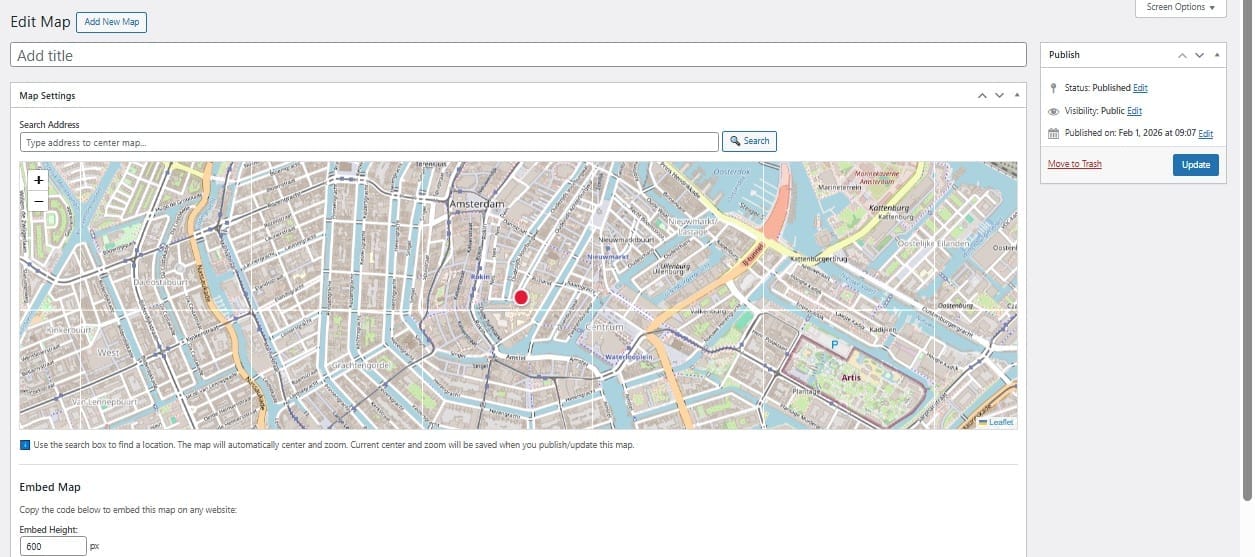
The map CPT (map10_map) represents a single map instance. Each map stores its center coordinates and zoom level as post meta. The post title is the map name shown in the admin. Create includes/cpt-maps.php:
<?php
if ( ! defined( 'ABSPATH' ) ) exit;

function map10_register_cpt_maps() {

  $labels = [
    'name'               => 'Maps',
    'singular_name'      => 'Map',
    'add_new'            => 'Add Map',
    'add_new_item'       => 'Add New Map',
    'edit_item'          => 'Edit Map',
    'new_item'           => 'New Map',
    'view_item'          => 'View Map',
    'search_items'       => 'Search Maps',
    'not_found'          => 'No maps found',
    'menu_name'          => 'Maps',
  ];

  $args = [
    'labels'             => $labels,
    'public'             => false,
    'show_ui'            => true,
    'show_in_menu'       => true,
    'menu_icon'          => 'dashicons-location-alt',
    'supports'           => ['title'],
    'capability_type'    => 'post',
    'rewrite'            => false,
  ];

  register_post_type( 'map10_map', $args );
}
add_action( 'init', 'map10_register_cpt_maps' );
Key decisions in these arguments: public => false means the map CPT has no public-facing single post URL — maps are only rendered via shortcode, not as standalone pages. show_ui => true is required separately to show the CPT in the admin even when public is false. supports => ['title'] means only the title field is shown in the standard WordPress editor — all other settings are handled in a custom metabox. rewrite => false skips permalink generation since there are no public URLs to rewrite.
Registering the Location CPT: map10_location
The location CPT (map10_location) stores each individual map point — coordinates, polygon data, description, image, URL, and all visual settings. Create includes/cpt-locations.php:
<?php
if ( ! defined( 'ABSPATH' ) ) exit;

function map10_register_cpt_locations() {

  $labels = [
    'name'          => 'Locations',
    'singular_name' => 'Location',
    'add_new_item'  => 'Add Location',
    'edit_item'     => 'Edit Location',
    'menu_name'     => 'Locations',
  ];

  $args = [
    'labels'        => $labels,
    'public'        => false,
    'show_ui'       => true,
    'show_in_menu'  => 'edit.php?post_type=map10_map',
    'supports'      => ['title'],
    'rewrite'       => false,
  ];

  register_post_type( 'map10_location', $args );
}
add_action( 'init', 'map10_register_cpt_locations' );
The most important argument here is show_in_menu => 'edit.php?post_type=map10_map'. This nests the Locations menu item under the Maps menu item in the WordPress admin sidebar, instead of creating a separate top-level menu entry. The result is a clean hierarchy: Maps at the top level, Locations as a submenu. Without this, both CPTs appear as separate top-level items, which creates unnecessary clutter when a plugin has multiple related CPTs.
This article is part of our complete guide:
How to Build an Interactive Map Plugin for WordPress from Scratch
Read the full guide →