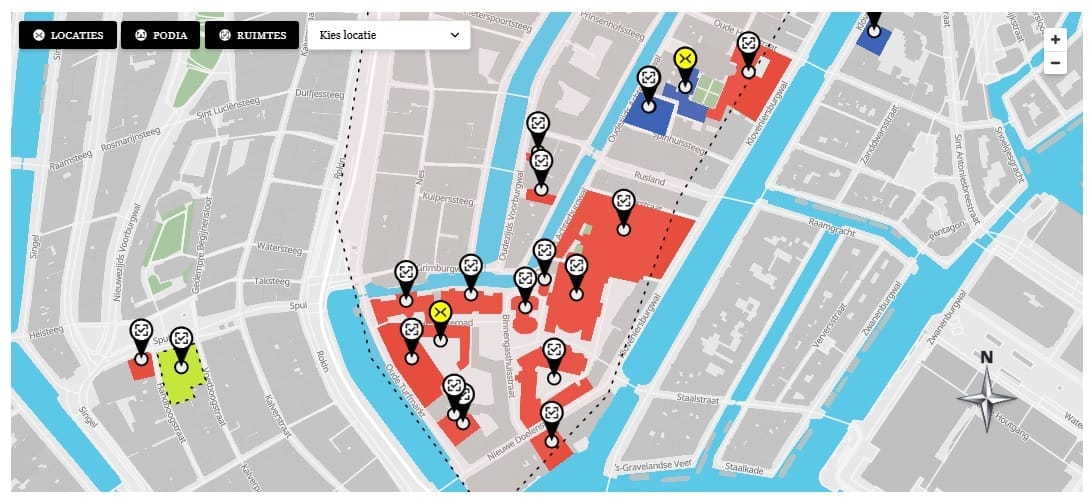
Per-Location Border Rendering in MapLibre
Each location can have an independent border style — none, solid, or dotted — with a custom color and width. In MapLibre, polygon borders are rendered as a separate line layer on top of the fill layer. The border style is stored as post meta and included in the window.map10Data payload. When the line layer is added, its paint properties are set from the location’s border meta values.
map.addLayer({
  id: lineLayerId,
  type: 'line',
  source: sourceId,
  paint: {
    'line-color': location.borderColor || '#000000',
    'line-width': location.borderWidth || 1,
    'line-dasharray': location.borderStyle === 'dotted' ? [2, 4] : [1, 0],
    'line-opacity': location.borderStyle === 'none' ? 0 : 1,
  }
});
Hiding Locations from the Dropdown
The _map10_hide_from_dropdown meta flag controls whether a location appears in the location select dropdown. Some locations are decorative areas — they should be visible on the map but not selectable by the user. This flag is checked during shortcode rendering when building the <option> list. The location still appears on the map and is still included in window.map10Data so that its polygon and marker are rendered normally.
Area Color Override
By default, a location’s polygon fill color comes from its assigned category’s color. The _map10_area_color_override meta field allows overriding this per location. If the field is set, its value is used instead of the category color when building the fill-color and fill-opacity paint properties for that location’s MapLibre layer. This is handled in map.js when initializing each location’s layers:
const fillColor = location.areaColorOverride || location.categoryColor || 'rgba(100,100,100,0.4)';
const parsed    = parseRgba( fillColor );

map.addLayer({
  id: fillLayerId,
  type: 'fill',
  source: sourceId,
  paint: {
    'fill-color'  : parsed.hex,
    'fill-opacity': parsed.alpha,
  }
});
This article is part of our complete guide:
How to Build an Interactive Map Plugin for WordPress from Scratch
Read the full guide →