Rendering Filter Buttons from Taxonomy Data
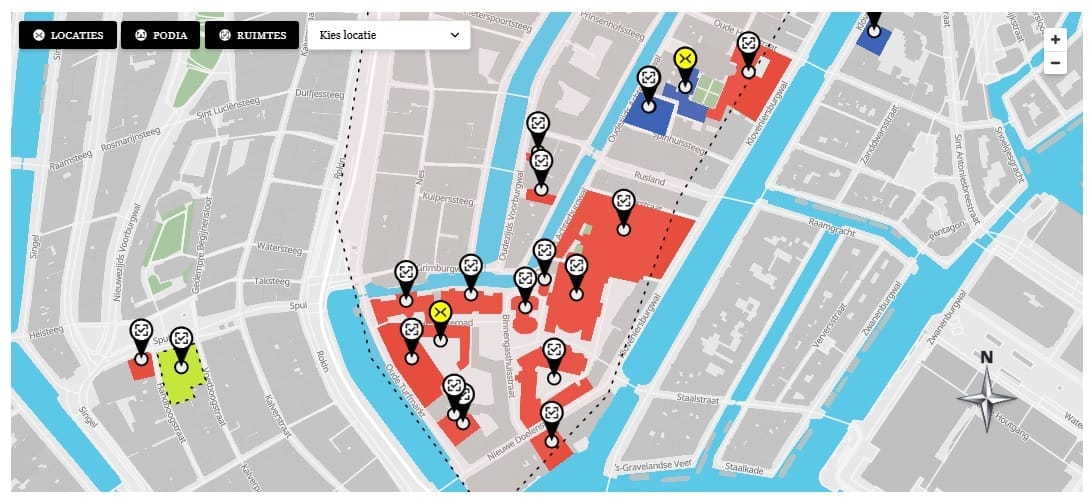
Filter buttons are rendered in the shortcode output, not in JavaScript. The shortcode handler queries all categories that have at least one published location assigned to the current map, then outputs a button for each category using the category name, color, and icon from term meta. This server-side rendering means the buttons are visible before JavaScript initializes and work correctly with page caching.
$categories = get_terms([
  'taxonomy'   => 'map10_category',
  'hide_empty' => true,
  'object_ids' => wp_list_pluck( $locations, 'ID' ),
]);

foreach ( $categories as $cat ) {
  $color = get_term_meta( $cat->term_id, 'map10_color', true ) ?: 'rgba(100,100,100,0.5)';
  $icon  = get_term_meta( $cat->term_id, 'map10_icon', true );
  printf(
    '<button class="map10-filter-btn" data-category="%s" style="--cat-color:%s">%s%s</button>',
    esc_attr( $cat->slug ),
    esc_attr( $color ),
    $icon ? '<img src="' . esc_url($icon) . '" alt="">' : '',
    esc_html( $cat->name )
  );
}
Updating Polygon Opacity on Filter Change
When a filter button is clicked, map.js updates the fill-opacity and fill-outline-color paint properties for every location layer based on whether that location belongs to the selected category. Locations in the active category get full opacity; others are reduced to 15% opacity. This is done using map.setPaintProperty() with a MapLibre expression that checks the feature’s category slug against the active filter:
map.setPaintProperty( layerId, 'fill-opacity', [
  'case',
  ['==', ['get', 'category'], activeCategory],
  categoryOpacity,
  0.15
]);
Keeping the Location Dropdown in Sync
The location dropdown lists all locations for the current map. When a category filter is active, the dropdown should only show locations in that category. This is handled by iterating over all <option> elements in the select and toggling their disabled and hidden attributes based on a data-category attribute set during server-side rendering. The first enabled option is selected automatically so the dropdown never shows a disabled item as the current selection.
This article is part of our complete guide:
How to Build an Interactive Map Plugin for WordPress from Scratch
Read the full guide →