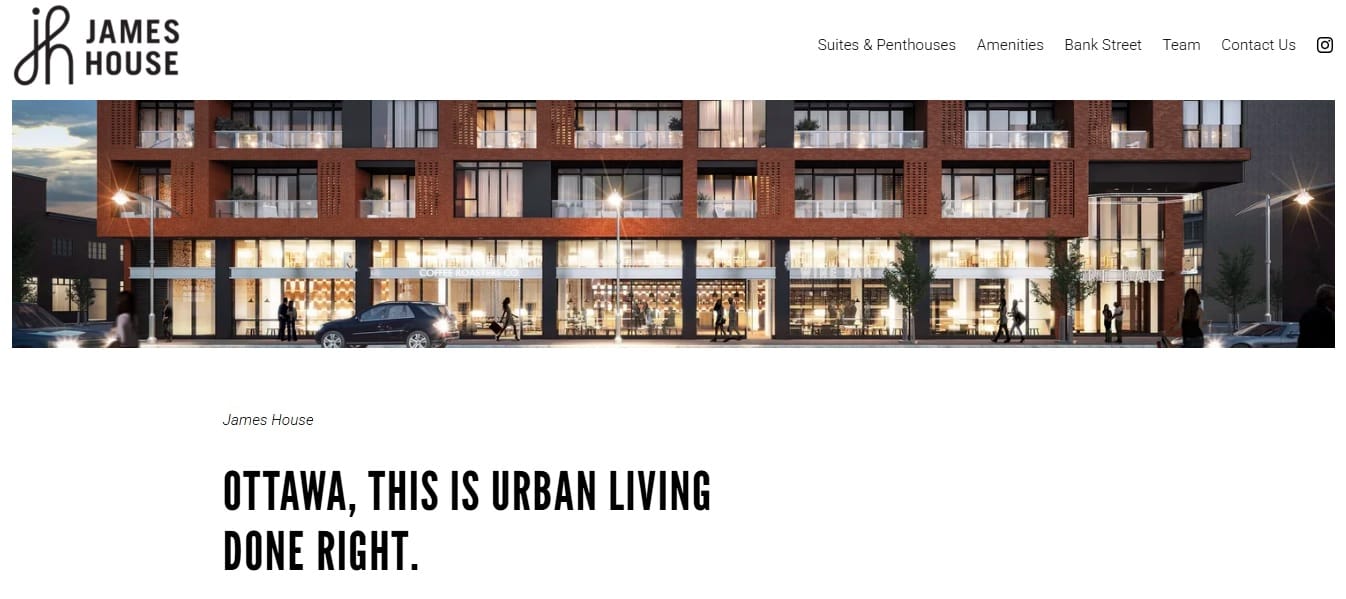
Squarespace is a popular choice for real estate developers who want a polished-looking site without the overhead of a custom CMS. But when a client needs a content refresh across multiple pages — new popup, updated copy, replaced images, revised CTAs — doing that work safely without disrupting the live site requires a clear process. This case study covers a content update project for jameshouse.ca, a Canadian real estate development, and documents the approach used to scope, stage, and deliver the changes.
Project Overview
| Project | Squarespace content update |
| Site | jameshouse.ca — residential real estate development, Canada |
| Platform | Squarespace |
| Pages updated | 6 pages |
| Timeline | 2–3 working days |
Scope of Work
The client provided a PDF with annotated references for each page. The PDF was for layout guidance only — high-resolution images and final copy were delivered separately as Illustrator files. The updates covered six pages with the following changes:
Landing Page: A new popup was added to appear on page load. The existing registration form was removed. The primary CTA button — “Book your private appointment now” — was redirected to the Contact page instead of opening the form.
Suites Page: Content above and below the floorplan section was refreshed. The floorplans themselves and their linked PDFs were explicitly out of scope. The Penthouses subsection had no changes.
Bank Street Page, The Team Page, Contact Us Page, Amenities Page: Each received copy and image updates as outlined in the reference PDF. On The Team page, only the main listing page was updated — the Developers subpage was left unchanged.
Handling Staging on Squarespace
Squarespace does not have a built-in staging environment. Unlike WordPress, where you can spin up a staging subdomain and push changes to production, Squarespace operates as a single live site. The client specifically requested that no changes be made directly to the live version until everything was reviewed and approved.
The approach used was page-level duplication. For each page that required updates, a duplicate was created inside the Squarespace editor using the built-in Duplicate option. The duplicated pages were kept out of the site navigation and given temporary URL slugs (for example, /new-suites alongside the live /suites). All changes were applied to the duplicates. The client reviewed these pages using their direct URLs before anything was touched on the originals.
Once the client approved each page, the process to replace the live version was straightforward: the URL slug of the new page was renamed to match the original, and the original page was either hidden from navigation or deleted. Because Squarespace uses slug-based routing, renaming the slug of the updated page to the live URL effectively made it the active version with no downtime.
Full Site Backup Before Starting
Before making any changes, a backup process was run. Squarespace does not offer a one-click full backup, so the backup was assembled from several steps. Each page was duplicated inside the editor as a static fallback. The site was also exported via Settings › Advanced › Import/Export using the WordPress XML export option, which captures basic page content and post data — though not design settings, CSS, or custom JavaScript blocks.
For a visual record, screenshots were taken of every page at full width before edits began. These served as a reference point in case any layout question came up during the review process.
Clarifying Scope from the PDF
One issue that came up during the initial review was that the floorplan section on the Suites page appeared twice in the reference PDF. This was confirmed to be a production error in the PDF itself — the instruction was to treat any repeated section as unchanged, and to apply only the content visible above and below the floorplans. This kind of scope clarification before starting saved time that would otherwise have been spent on unnecessary edits or back-and-forth after delivery.
The general rule applied throughout the project: if something appeared new or different in the PDF compared to the live site, it was a required update. If something appeared the same, it was left unchanged.
Popup Implementation
Squarespace has a built-in promotional popup feature accessible under Marketing › Promotional Pop-Up. The new popup was configured there with the content provided by the client. Display settings were set to show on first visit, with a cookie-based frequency control to avoid showing it on every page load for returning visitors. No custom JavaScript was required for this — the native Squarespace popup tool handled the requirements fully.
Delivery and Timeline
The project was completed in two working days once all assets were received. Day one covered the landing page popup, the removal of the registration form, and the Suites page updates. Day two covered the remaining four pages. A half day was kept in reserve for any revision requests after the client reviewed the duplicated pages, but no significant changes were needed.
The final step was publishing: renaming the updated page slugs to replace the live versions, confirming all internal links still resolved correctly, and removing the temporary duplicate pages from the editor. The site remained live and accessible throughout the entire process.
Key Takeaways
Squarespace content updates are straightforward once you establish a staging workflow that fits the platform constraints. The absence of a native staging environment is the main friction point, but page-level duplication is a reliable substitute for projects of this scope. The most important step is clarifying exactly what is and is not in scope before touching the live site — especially on pages like Suites where only a portion of the page was being updated.